


One of the best tools I’ve found for working with multiple AI models is LibreChat. While the tool is somewhat painful to set up, once you complete its configuration, it lets you have an AI chat session and switch models midstream without losing context. When combined with a OpenRouter API key (gives access to literally hundreds of AI models), you can try new models for your recurring workloads and select the ones which offer the best price/performance return on your investment in AI.
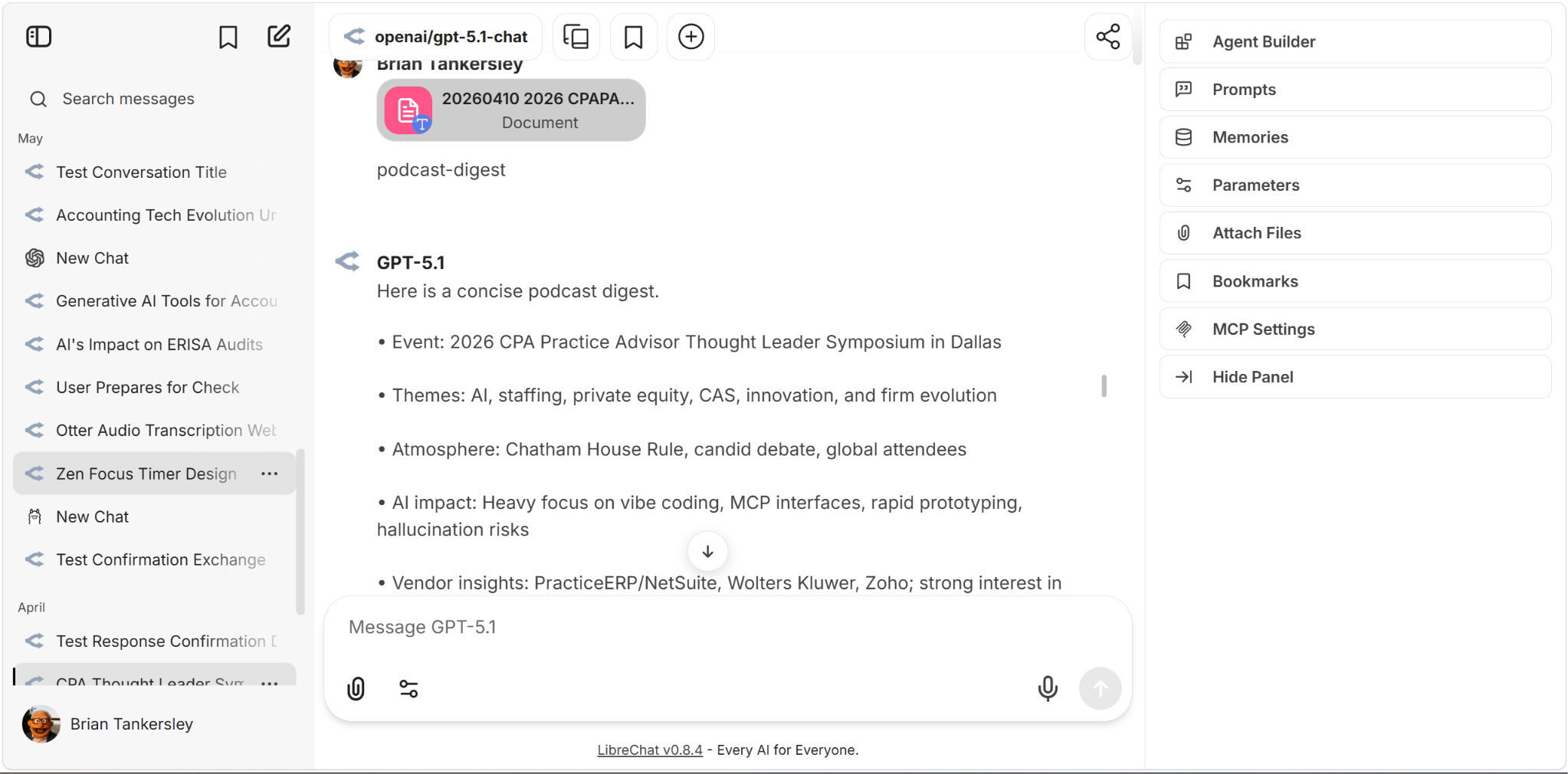
If you’re going to use it in an organization, your IT department can review the wiki, which includes this guide to help you install and configure it. I run it in a Debian 13 Docker host with 8GB RAM on my local box with HyperV, no GUI, and administer the environment with Portainer CE in a web browser – but that’s because I’ve a Debian devotee – it will run fine under pretty much any environment that can run Docker containers. Since my main box is the only real “beast” computer I have in my office/lab (64 GB RAM, Video card with 16 GB discrete RAM, a few dozen terabytes of storage), it’s the best place for me to run it in my environment. LibreChat is also compatible with local AI models like OpenLlama which you can run without the privacy and price concerns of the frontier models.
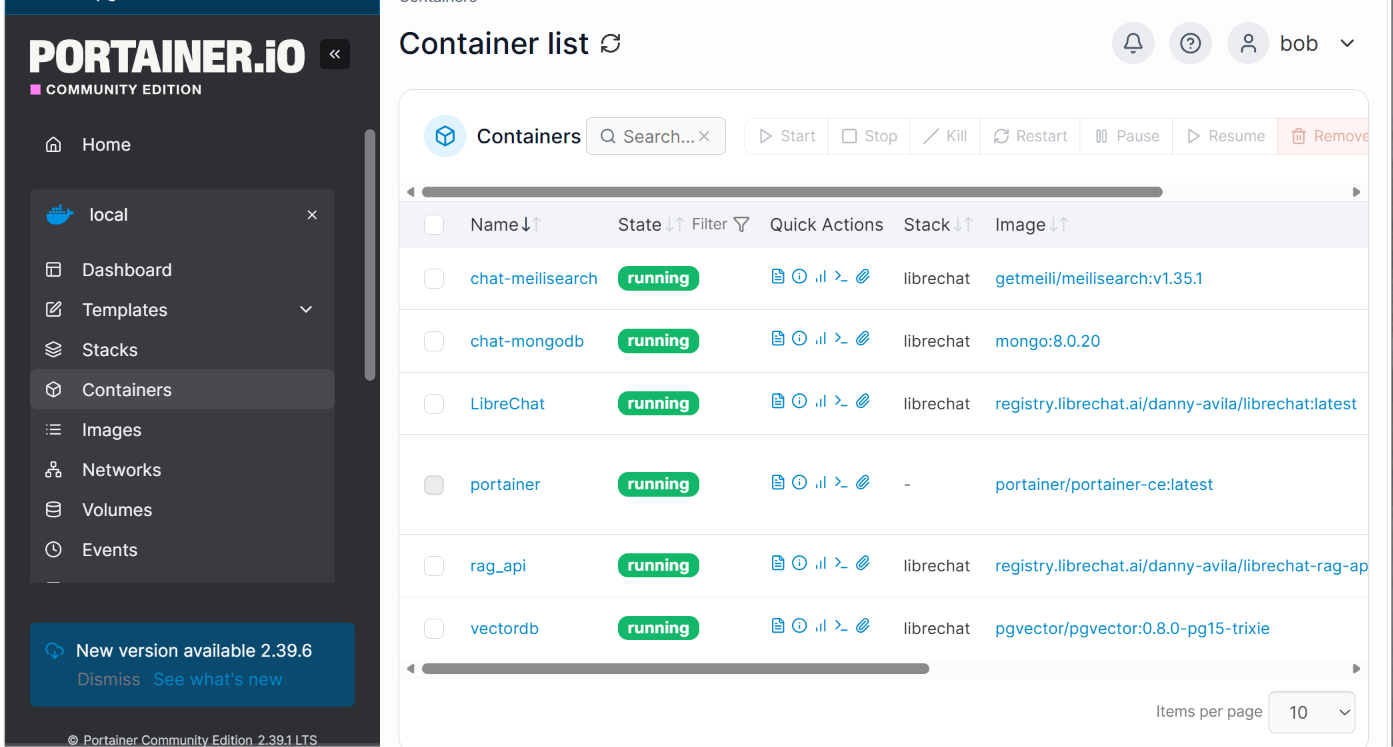
The easiest and most reliable way for beginners to install LibreChat is by using Docker Desktop, a free software tool that packages the entire application, its database, and all necessary dependencies into pre-configured virtual containers. To get started, download and install Docker Desktop and Git on your computer (available for Windows, macOS, and Linux). Once installed, ensure Docker Desktop is running in the background, open your computer’s terminal or command prompt, and run the command git clone https://github.com/danny-avila/LibreChat.git followed by cd LibreChat to download the official project files and navigate into the folder.
Next, you need to configure your environment settings and supply your AI model credentials. Inside the downloaded LibreChat directory, locate the file named .env.example, make a copy of it, and rename that copy to .env. Open this new .env file with any plain text editor (like Notepad or TextEdit). Here, you will paste your API keys for the AI providers you want to enable—such as OPENAI_API_KEY, ANTHROPIC_API_KEY, or an OPENROUTER_KEY (which gives you access to hundreds of models under one key). If you do not have commercial API keys yet, you can also configure it to connect to locally running open-source models using tools like Ollama.
Finally, you can launch the application with a single command: type docker compose up -d in your terminal and press Enter. Docker will automatically download the necessary image files, initialize the database, and start the LibreChat server in the background (this may take a few minutes on the first run). Once the process completes, open your web browser and navigate to http://localhost:3080. The first account you register on this welcome page will automatically become the system administrator, allowing you to manage users, customize settings, and immediately start chatting with your connected AI models.
I had LibreChat generate a beginners guide below. I hope it helps you.
A Beginner’s Guide to LibreChat
LibreChat is a free, open-source web interface that lets you chat with many different Artificial Intelligence (AI) models all in one place.
Think of it like a “universal remote” for AI: instead of logging into separate websites for ChatGPT (OpenAI), Claude (Anthropic), Gemini (Google), or locally hosted open-source models, LibreChat brings them all under a single, unified screen.
Part 1: Quick-Start Guide for New Users
1. The Interface Layout
When you log in, the screen looks very familiar if you have ever used ChatGPT:
- Left Sidebar: Your chat history, search bar, and saved presets.
- Top Header: The Model Selector dropdown (shows which AI engine is currently answering you).
- Center / Chat Area: The conversation thread where responses and code appear.
- Bottom Input Bar: Where you type prompts, attach files/images, and adjust settings.
2. How to Start a Conversation
[ Step 1: Select Model ] ➔ [ Step 2: Set Preset (Optional) ] ➔ [ Step 3: Type & Chat ]
- Pick your AI Model: Click the dropdown menu at the top of the chat (or in the input bar) to choose the engine you want to use (e.g., GPT-4o, Claude 3.5 Sonnet, Gemini 1.5 Pro, or a local Llama 3 model).
- Type your Prompt: Enter your question or task in the text box at the bottom.
- Press Enter (or click Send): The selected model will generate a response.
3. Key Features Every New User Should Know
- Switch Models Mid-Conversation: You can ask a question to Claude 3.5 Sonnet, and for the very next question in the exact same chat, switch the dropdown to GPT-4o. The new model will read the prior context seamlessly.
- Fork / Edit Messages: Click the pencil icon on any previous message to edit your prompt, or click the branch/fork icon to split your conversation into two different paths.
- Presets & Custom Instructions: You can create custom personas (e.g., “Academic Research Assistant” or “Python Coding Tutor”) by saving system instructions, temperature (creativity level), and default models.
- File & Image Uploads: If enabled by your administrator, click the Paperclip icon to upload PDFs, spreadsheets, or images for the model to analyze.
Part 2: How LibreChat Compares to Native AI Interfaces
(Native interfaces = chatgpt.com, claude.ai, gemini.google.com)
┌─────────────────────────────────────────────────────────────┐│ NATIVE APPS ││ (chatgpt.com, claude.ai) ││ • Single Provider Only • Vendor-managed Data Storage ││ • $20/mo Flat Subs • Native features (Voice/Canvas│└──────────────────────────────┬──────────────────────────────┘ │ VS │ ▼┌─────────────────────────────────────────────────────────────┐│ LIBRECHAT ││ • Multi-Model Aggregator • Enterprise Data Privacy ││ • Direct API/Token Billing • Local & Cloud Model Support │└─────────────────────────────────────────────────────────────┘
1. How LibreChat is SIMILAR to Native Interfaces
- User Experience & Look-and-Feel: It uses a clean, modern UI with markdown formatting, syntax-highlighted code blocks, copy-paste buttons, and dark/light modes.
- Conversational Memory: Like native apps, LibreChat keeps track of previous messages in the chat so you can ask follow-up questions.
- Multimodal Abilities: You can chat with text, upload images for visual analysis, and parse documents (PDFs, text files) just like in native apps.
- Exporting & Sharing: You can export chats to Markdown, text, or JSON files.
2. How LibreChat is DIFFERENT from Native Interfaces
| Feature | Native Platforms (ChatGPT / Claude / Gemini) | LibreChat |
|---|---|---|
| Model Choice | Locked to one company: ChatGPT only gives you OpenAI models; Claude only gives you Anthropic. | All-in-One: Access OpenAI, Anthropic, Google, DeepSeek, Meta (Llama), and local servers simultaneously. |
| Data Privacy & Training | Free/standard accounts often use your chat data to train future models unless you opt out. | Private by default: Connects via backend APIs or local servers where provider training is disabled (ideal for FERPA/HIPAA/Zero Trust). |
| Cost & Access Model | Usually requires a $20/month subscription per provider (e.g., $20 for ChatGPT Plus + $20 for Claude Pro = $40/mo). | Centralized / Pay-per-use: Connects through organization API keys (e.g., OpenRouter or Azure) where users only pay fractions of a cent per prompt. |
| Switching Engines | You cannot change models once a chat is started across different providers. | Instant Model Hotswapping: Compare how Claude vs. GPT-4o answers the exact same question in the same window. |
| Proprietary Features | Has platform-specific tools (e.g., ChatGPT’s Advanced Voice Mode, GPT Store, or Artifacts in Claude). | Focuses on standard chat, prompt templates, and API tools; might lack vendor-specific proprietary experimental UI gadgets. |
| Hosting & Control | Hosted entirely on commercial cloud servers (OpenAI, Google, Anthropic). | Can be hosted on-campus / locally inside a private data center to keep data inside the university/enterprise network. |
Summary: Why Use LibreChat?
- Flexibility: You are never locked into one AI vendor. When a new, superior model comes out (whether from Google, Anthropic, or an open-source community), it can be added instantly without creating new user accounts.
- Security & Privacy: Because it operates through enterprise API endpoints, conversations can be protected under strict privacy guidelines, meeting university compliance standards.
- Cost Efficiency: Instead of buying separate $20/month subscriptions for every student or employee across three different websites, a single LibreChat instance allows an organization to pool and manage access centrally.
So, what models are you using? I’ve been experimenting with many different ones, and am finding that Gemini’s flash models seem to be both economical and effective. What are you using these days?